
Product Reviews
Product reviews submitted in BigCommerce sync to WordPress® and display on product pages using native WordPress® blocks. Reviews are moderated in BigCommerce and automatically sync their approval status to WordPress®.
Why Product Reviews Matter
Section titled “Why Product Reviews Matter”Product reviews are critical for e-commerce success. They provide social proof that directly impacts purchase decisions:
Conversion Impact:
- 63% of customers are more likely to purchase from a site with product reviews
- Products with reviews see 18% higher conversion rates on average
- 5+ reviews per product significantly increases add-to-cart rates
Trust Building:
- Reviews build credibility - customers trust peer feedback over marketing copy
- Negative reviews (when handled well) increase authenticity and trust
- Star ratings provide quick visual signals of product quality
SEO Benefits:
- Review content adds unique, user-generated content to product pages
- Fresh review submissions signal active engagement to search engines
- Star ratings can display in search results (rich snippets)
Customer Insights:
- Reviews reveal product strengths and weaknesses from real users
- Feedback helps improve product descriptions and images
- Common questions in reviews inform FAQ content
Enable and moderate reviews actively to maximize these benefits. Authentic customer feedback is one of the most powerful tools for growing online sales.
How It Works
Section titled “How It Works”- BigCommerce Configuration: Enable the built-in comment system and product reviews in BigCommerce settings
- BigCommerce Moderation: Review and approve/disapprove customer submissions in BigCommerce admin
- WordPress® Display: Approved reviews automatically sync to WordPress® and display via Product Reviews blocks
All review data (ratings, review text, author, dates) is stored and moderated in BigCommerce. WordPress® displays read-only copies of approved reviews.
Quick Start
Section titled “Quick Start”Complete workflow in 5 steps:
- Enable reviews: BigCommerce → Settings → Comments → Select “Built-in” → Check “Product reviews” → Save
- Customer submits: WordPress® product page → Customer signs in → Fills review form → Submits
- Review pending: BigCommerce → Products → Reviews → New review appears with “Pending” status
- Approve review: Select review → Click “Approve Selected” → Verify “Approved” status
- Display on WordPress®: Review syncs to WordPress® → Displays on product page after sync
Time from submission to display: Depends on sync cycle
Enabling Reviews in BigCommerce
Section titled “Enabling Reviews in BigCommerce”Step 1: Access Comment Settings
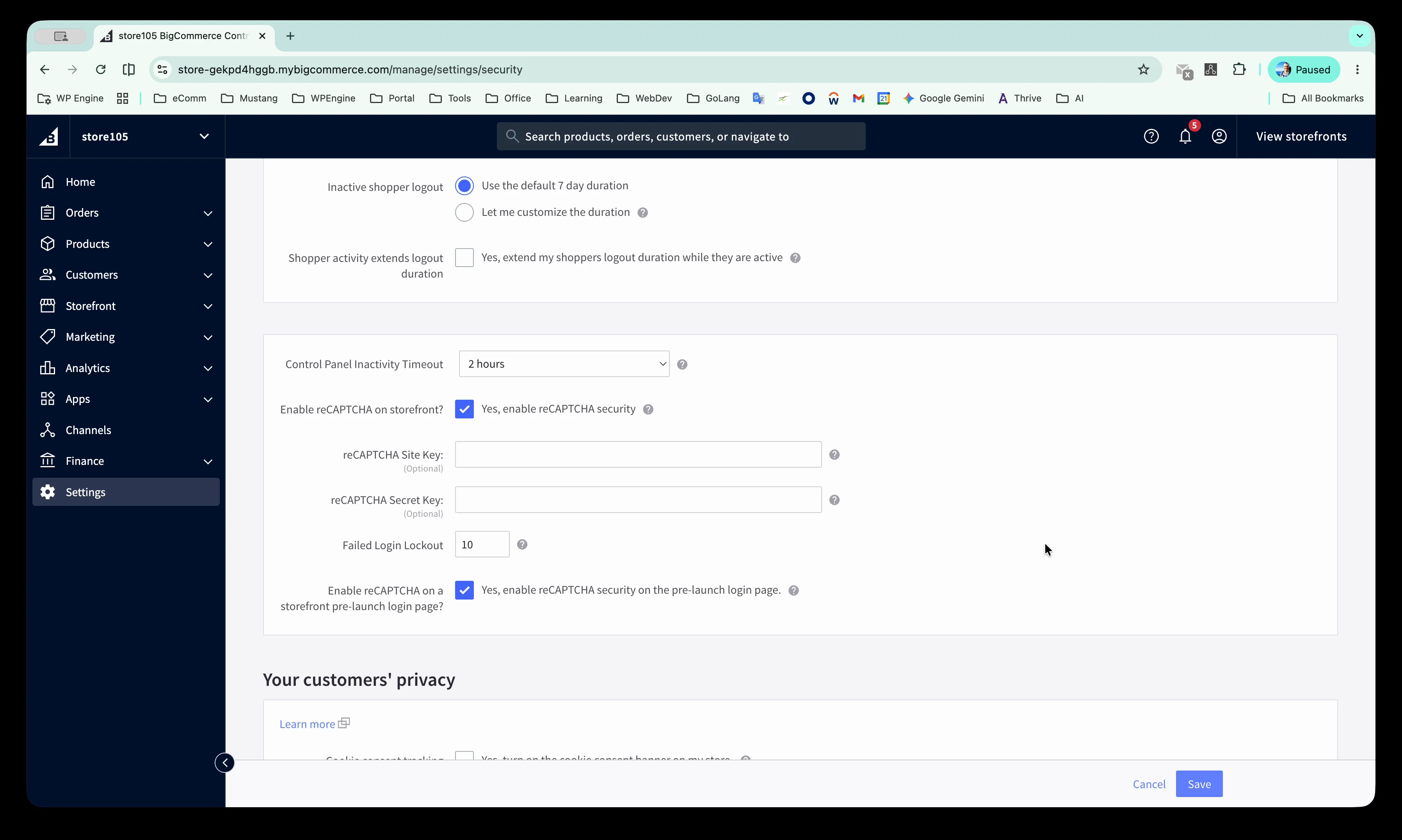
Section titled “Step 1: Access Comment Settings”- In BigCommerce admin, navigate to Settings in the left sidebar
- Click Comments to access comment system configuration
Step 2: Configure Review Settings
Section titled “Step 2: Configure Review Settings”Select the following options:
- Comment System: Choose “Built-in” (not external)
- Product reviews: Check this box to enable review collection
- Only accept product reviews from past customers (optional): Restrict reviews to verified purchasers only
Click Save to apply the settings.
Verifying Configuration
Section titled “Verifying Configuration”After saving, verify your review settings are active:
- Refresh the page - settings should persist (checkboxes remain checked)
- Visit a product page on your WordPress® site
- Scroll to the reviews section - you should see the “Write a Review” block
- If not signed in, you should see “Please sign in to write a review”
- The Product Reviews block should display (even if no reviews exist yet)
Success indicators:
- BigCommerce shows “Built-in” selected with Product reviews checked
- WordPress® product pages show the review submission form
- Test review submission creates a “Pending” review in BigCommerce
If the Write a Review block doesn’t appear, verify the Single Product template includes the Product Reviews blocks.
What These Settings Do
Section titled “What These Settings Do”| Setting | Effect |
|---|---|
| Built-in comment system | Uses BigCommerce’s native review system instead of external services |
| Product reviews enabled | Allows customers to submit reviews for products |
| Past customers only | When enabled, only customers who purchased the product can review it |
Moderating Reviews in BigCommerce
Section titled “Moderating Reviews in BigCommerce”Accessing the Review Moderation Interface
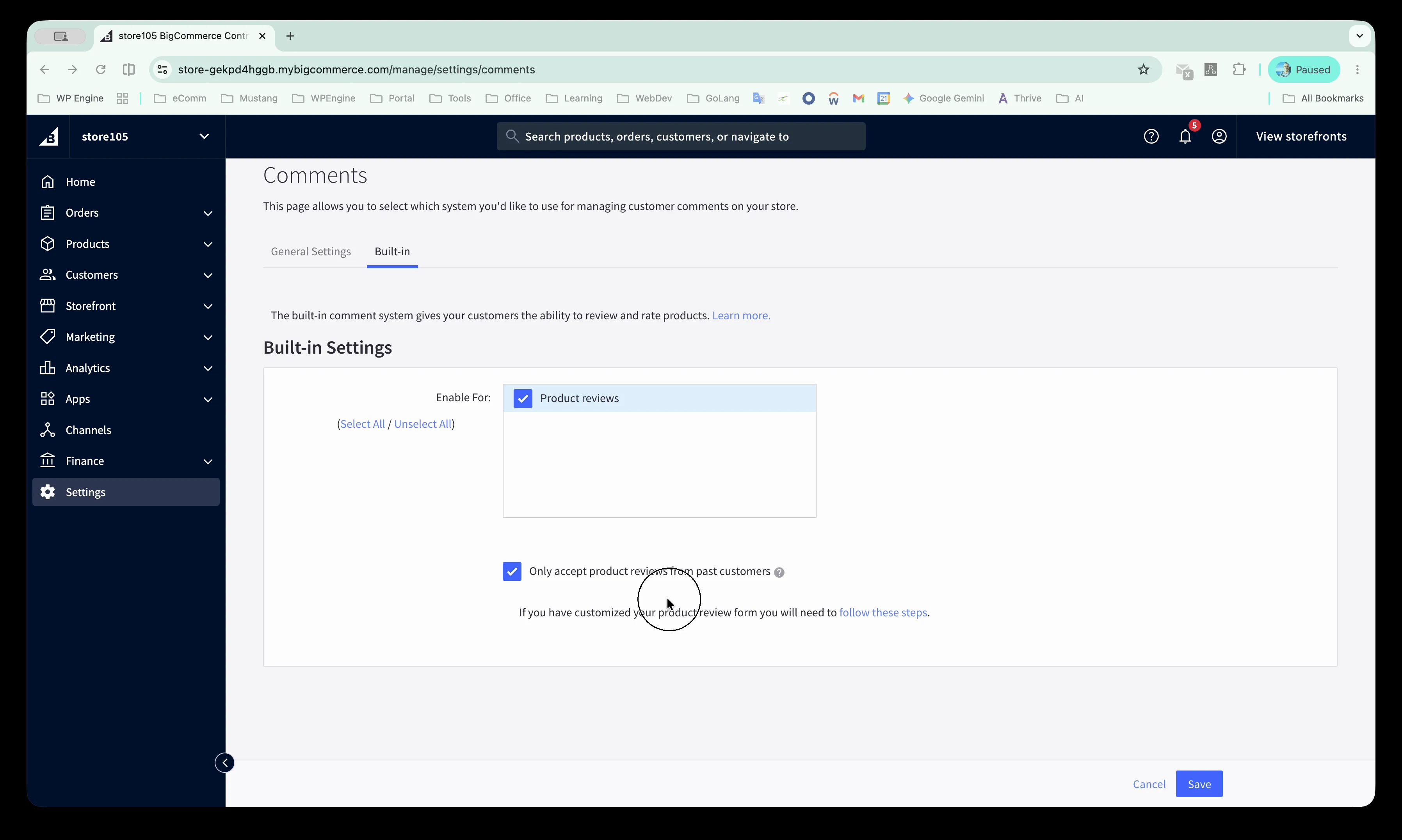
Section titled “Accessing the Review Moderation Interface”- In BigCommerce admin, expand Products in the left sidebar
- Click Reviews to view all submitted reviews
Review Status Options
Section titled “Review Status Options”Each review can have one of three statuses:
- Approved: Review displays on WordPress® frontend
- Pending: Review awaits moderation, does not display on WordPress®
- Disapproved: Review is hidden, does not display on WordPress®
Bulk Actions
Section titled “Bulk Actions”Use bulk actions to moderate multiple reviews at once:
- Select reviews using checkboxes in the left column
- Click one of the action buttons:
- Approve Selected: Set all selected reviews to Approved
- Disapprove Selected: Set all selected reviews to Disapproved
- Delete Selected: Permanently remove selected reviews
Editing Individual Reviews
Section titled “Editing Individual Reviews”To moderate a single review:
- Click the ••• menu in the Action column
- Select the review to open the edit screen
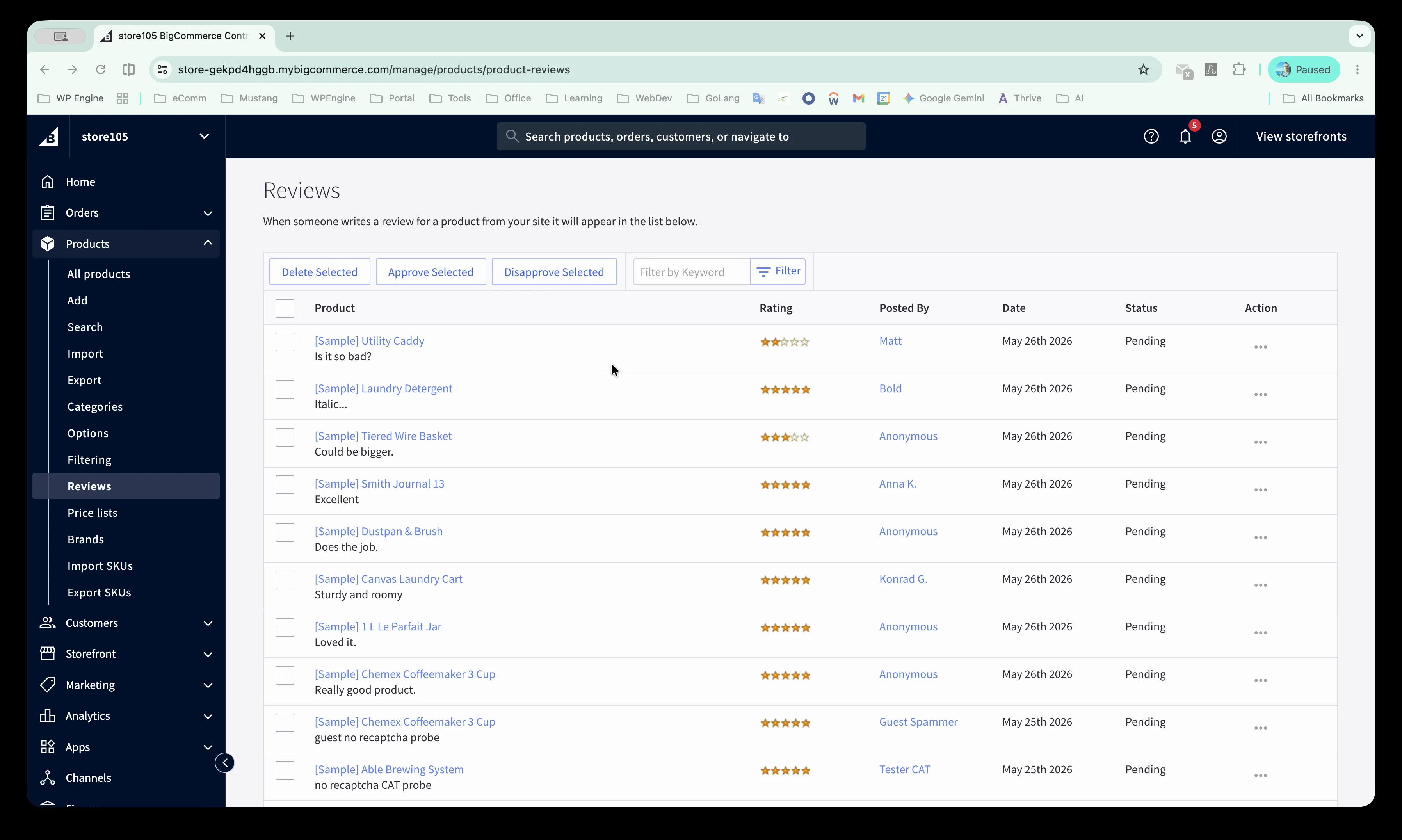
On the review edit screen:
- Review Title: The headline of the review
- Review: The full review text
- Author: Reviewer’s name
- Status: Change between Approved/Pending/Disapproved
- Rating: Star rating (1-5 stars)
Click Save to apply changes. Status changes sync to WordPress® within the next sync cycle.
Displaying Reviews on WordPress®
Section titled “Displaying Reviews on WordPress®”Product Reviews Block
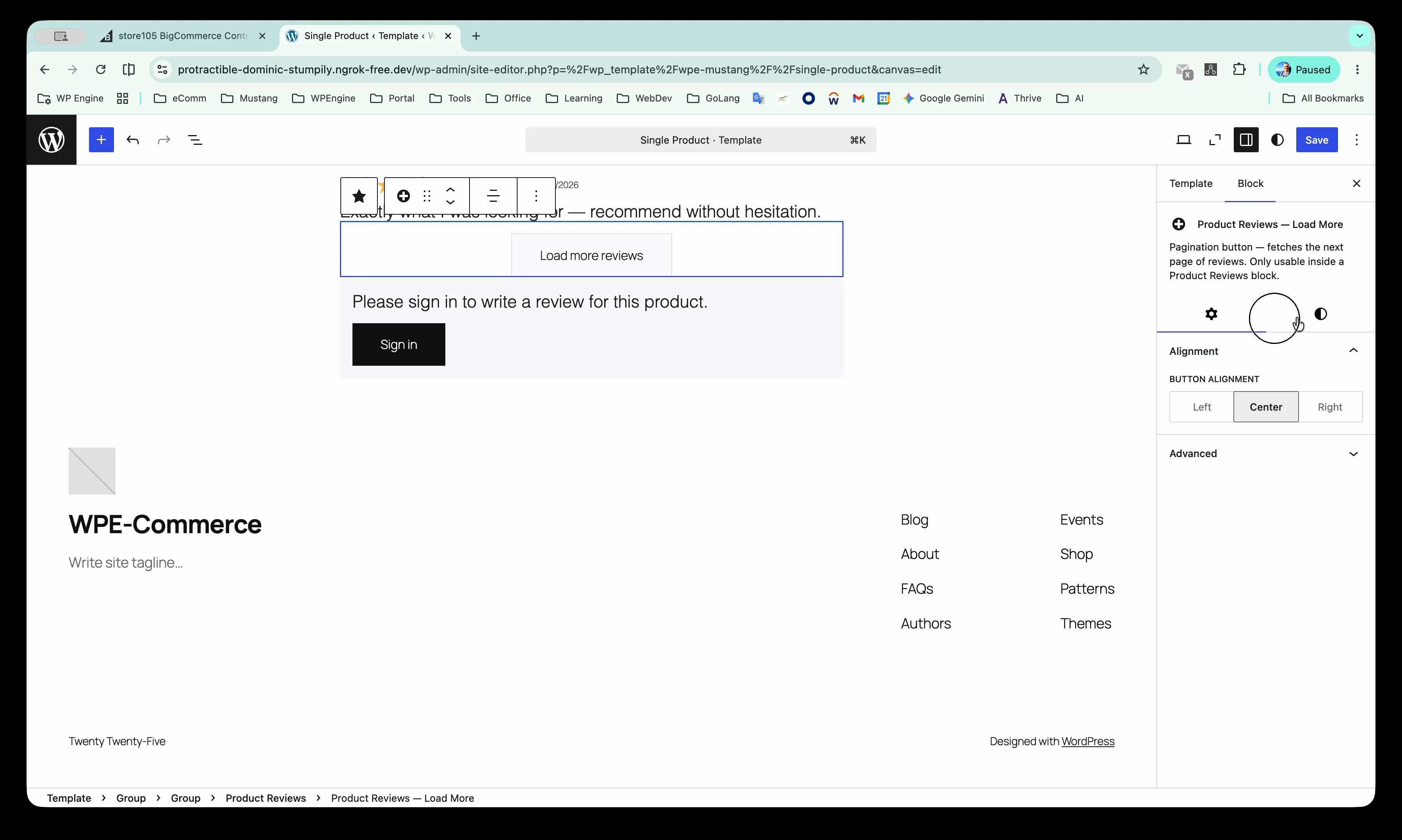
Section titled “Product Reviews Block”Reviews display on WordPress® product pages using the Product Reviews block. This block:
- Reads the product ID from the parent Single Product template context
- Displays only approved reviews from BigCommerce
- Shows aggregate star rating and review count
- Includes pagination for products with many reviews
Review Display Components
Section titled “Review Display Components”The Product Reviews block shows:
- Overall Rating: Aggregate star rating and total review count (e.g., “4.6 ★★★★★ (26 reviews)”)
- Sort Controls: Dropdown to sort reviews (default: “Newest first”)
- Individual Reviews: Each showing:
- Reviewer name
- Star rating
- Review date
- Review title and text
- Load More Button: Pagination control for additional reviews
Review Submission Form
Section titled “Review Submission Form”The Write a Review block allows customers to submit new reviews:
- Appears on product pages below existing reviews
- Requires customer authentication (sign-in)
- Submits reviews directly to BigCommerce as “Pending” status
- Shows “Please sign in to write a review” message for unauthenticated users
Form Fields:
- Star Rating: 1-5 stars (required)
- Review Title: Brief headline for the review (required)
- Review Text: Detailed feedback about the product (required)
- Reviewer Name: Auto-filled from customer account
Submission Process:
- Customer selects star rating (1-5 stars)
- Customer enters review title and text
- Customer clicks “Submit Review” button
- Review is sent to BigCommerce with “Pending” status
- Customer sees confirmation message
- Review awaits admin approval in BigCommerce moderation queue
Validation:
- All fields are required (rating, title, text)
- Customer must be signed in to WordPress®
- If “Past customers only” is enabled, customer must have purchased the product
- Failed validation shows inline error messages
Block Configuration
Section titled “Block Configuration”The Product Reviews blocks are typically included in the Single Product template. No configuration is required - they automatically:
- Read the product ID from the template context
- Fetch approved reviews for that product
- Display reviews in the selected sort order
- Handle pagination automatically
Sync Behavior
Section titled “Sync Behavior”What Syncs to WordPress®
Section titled “What Syncs to WordPress®”When a review is approved in BigCommerce, the following data syncs to WordPress®:
- Review title
- Review text
- Star rating (1-5)
- Reviewer name
- Review submission date
- Approval status
What Doesn’t Sync
Section titled “What Doesn’t Sync”- Disapproved reviews
- Pending reviews (awaiting moderation)
- Deleted reviews
Sync Timing
Section titled “Sync Timing”Review status changes (Approved/Disapproved/Pending) sync during the regular product sync cycle. Changes in BigCommerce appear on WordPress® after the next sync completes.
Testing Your Review Setup
Section titled “Testing Your Review Setup”Before going live, test the complete review workflow to ensure everything works correctly.
End-to-End Test Procedure
Section titled “End-to-End Test Procedure”Step 1: Verify BigCommerce Configuration
Section titled “Step 1: Verify BigCommerce Configuration”- Navigate to BigCommerce → Settings → Comments
- Confirm “Built-in” is selected
- Confirm “Product reviews” is checked
- Note whether “Past customers only” is enabled
- Save settings if any changes were made
Step 2: Test Review Submission on WordPress®
Section titled “Step 2: Test Review Submission on WordPress®”- Visit a product page on your WordPress® site
- Scroll to the reviews section
- If not signed in, verify “Please sign in to write a review” message appears
- Sign in to WordPress® with a customer account
- Click to write a review
- Fill in all required fields:
- Select a star rating (e.g., 5 stars)
- Enter a review title (e.g., “Test Review”)
- Enter review text (e.g., “This is a test review to verify the workflow.”)
- Click “Submit Review”
- Verify success confirmation message appears
Step 3: Verify Review Appears in BigCommerce
Section titled “Step 3: Verify Review Appears in BigCommerce”- Return to BigCommerce admin
- Navigate to Products → Reviews
- Locate your test review (should show “Pending” status)
- Verify review details match what you submitted:
- Correct product name
- Correct star rating
- Correct review title and text
- Correct author name
- Today’s date
Step 4: Test Moderation
Section titled “Step 4: Test Moderation”- Select your test review
- Click “Approve Selected” (or change status to “Approved” in edit screen)
- Verify success message: “The selected review has been updated successfully”
- Confirm status changed to “Approved”
Step 5: Verify Review Displays on WordPress®
Section titled “Step 5: Verify Review Displays on WordPress®”- Wait for next sync cycle to complete (typically a few minutes)
- Return to the WordPress® product page
- Refresh the page
- Verify your test review now appears in the Product Reviews block
- Verify all details display correctly:
- Star rating matches
- Review title matches
- Review text matches
- Author name matches
- Date displays correctly
Step 6: Test Review Removal
Section titled “Step 6: Test Review Removal”- Return to BigCommerce → Products → Reviews
- Change your test review status to “Disapproved”
- Save the change
- Wait for sync cycle
- Refresh WordPress® product page
- Verify test review no longer appears
Success Criteria: ✅ Review submitted on WordPress® creates “Pending” entry in BigCommerce ✅ Approved reviews sync to WordPress® within expected timeframe ✅ Review details display accurately on WordPress® (rating, title, text, author, date) ✅ Disapproved reviews disappear from WordPress® after sync ✅ Aggregate rating updates correctly when reviews are added/removed
Common Workflows
Section titled “Common Workflows”Approving a New Review
Section titled “Approving a New Review”- Customer submits review on WordPress® product page
- Review appears as Pending in BigCommerce → Products → Reviews
- Admin reviews the submission in BigCommerce
- Admin clicks Approve Selected or changes status to “Approved” in edit screen
- Review syncs to WordPress® and displays on product page
Removing an Inappropriate Review
Section titled “Removing an Inappropriate Review”- Locate review in BigCommerce → Products → Reviews
- Either:
- Change status to Disapproved (hides from WordPress® but keeps in BigCommerce)
- Click Delete Selected (permanently removes from BigCommerce)
- Change syncs to WordPress® - review disappears from product page
Filtering Reviews by Keyword
Section titled “Filtering Reviews by Keyword”- In BigCommerce → Products → Reviews
- Enter search term in “Filter by Keyword” field
- Click Filter button
- Review list updates to show matching results
Best Practices
Section titled “Best Practices”Review Moderation Strategy
Section titled “Review Moderation Strategy”Approve When:
- Review provides genuine customer feedback about the product
- Content is appropriate and follows community standards
- Rating reflects actual product experience (even if negative)
- Review comes from verified purchaser (when “past customers only” is enabled)
Disapprove When:
- Review contains spam, promotional content, or external links
- Content includes offensive language or personal attacks
- Review is about shipping/service rather than the product itself
- Reviewer appears to be a competitor or has conflict of interest
- Review duplicates an already-approved submission
Delete When:
- Review contains illegal content or serious violations
- Legal concerns require permanent removal
- Review was submitted in error by customer who requests deletion
Important: Disapprove rather than delete in most cases. Disapproved reviews remain in your BigCommerce admin for reference but don’t display on WordPress®. This maintains moderation history and helps identify patterns (e.g., spam campaigns).
Moderation Workflow Tips
Section titled “Moderation Workflow Tips”Daily Moderation Routine:
- Visit BigCommerce → Products → Reviews each business day
- Filter by “Pending” status to see new submissions
- Read each review for quality and appropriateness
- Approve legitimate reviews promptly (builds trust with customers)
- Disapprove spam/inappropriate content
- Monitor aggregate ratings for products needing attention
Handling Negative Reviews:
- Do approve honest negative feedback - it builds credibility
- Don’t suppress legitimate criticism - customers expect authenticity
- Do improve product descriptions or documentation based on feedback
- Do respond by updating product details, not arguing with reviewers
Quality Standards:
- Require reviews to address the actual product (not shipping, service, or unrelated issues)
- Allow negative ratings if feedback is constructive and genuine
- Reject reviews that are too brief to be helpful (e.g., “good” or “bad” with no context)
- Approve detailed reviews even if they mention minor flaws
Spam Detection: Enable “Only accept product reviews from past customers” to automatically reduce spam. Watch for:
- Reviews with external links or promotional content
- Multiple reviews from same email/name on different products
- Generic positive reviews that could apply to any product
- Reviews submitted in rapid succession (possible bot activity)
Customer Experience
Section titled “Customer Experience”- Enable reviews early to start building social proof before launch
- Set expectations in product descriptions that reviews help future customers
- Monitor ratings weekly to identify products with low satisfaction
- Use feedback to improve product descriptions, images, or specifications
- Celebrate positive reviews by highlighting them in marketing materials (with permission)
Review Volume Management
Section titled “Review Volume Management”For stores with high volume:
- Use bulk actions to approve multiple legitimate reviews at once
- Use keyword filtering to find reviews for specific products quickly
- Prioritize moderation of high-traffic products first
- Consider assigning moderation duties if receiving 20+ reviews daily
For stores with low volume:
- Approve reviews same-day to encourage more submissions
- Reach out to past customers to request reviews if volume is low
- Feature products with reviews prominently to show social proof
Troubleshooting
Section titled “Troubleshooting”Reviews Don’t Appear on WordPress®
Section titled “Reviews Don’t Appear on WordPress®”Check these items:
- Review status in BigCommerce is “Approved” (not Pending or Disapproved)
- Product Reviews block is present in Single Product template
- Product sync has completed since review approval
- Review is for the correct product (check product ID)
Customers Can’t Submit Reviews
Section titled “Customers Can’t Submit Reviews”Check these items:
- Built-in comment system is enabled in BigCommerce → Settings → Comments
- “Product reviews” checkbox is checked
- If “Past customers only” is enabled, customer must have purchased the product
- Customer is signed in to WordPress® (authentication required)
- “Write a Review” block is present on product page
Aggregate Rating Doesn’t Match
Section titled “Aggregate Rating Doesn’t Match”The aggregate rating on WordPress® reflects only approved reviews. If the rating differs from BigCommerce:
- Check if pending/disapproved reviews exist in BigCommerce
- Wait for next sync cycle to complete
- Verify all reviews showing on WordPress® are approved in BigCommerce
Advanced Scenarios
Section titled “Advanced Scenarios”Handling High Review Volume
Section titled “Handling High Review Volume”When you have 20+ pending reviews:
- Use bulk selection to approve multiple legitimate reviews at once
- Use “Filter by Keyword” to find reviews for specific products
- Sort by date to prioritize newest submissions
- Consider establishing daily moderation schedule
Bulk Approval Workflow:
- Select first checkbox to enable bulk selection
- Check boxes for all reviews to approve
- Click “Approve Selected” button
- Verify success message confirms all updates
- Repeat for additional batches
Changing Review Settings After Reviews Exist
Section titled “Changing Review Settings After Reviews Exist”Switching from “Built-in” to external comment system:
- Existing reviews remain in BigCommerce but stop syncing to WordPress®
- WordPress® displays previously-synced reviews as read-only
- New reviews go to external system, not BigCommerce
Enabling “Past customers only” after collecting reviews:
- Existing reviews from non-customers remain visible
- New review submissions require verified purchase
- Consider whether to disapprove existing non-customer reviews
Managing Reviews When Products Change
Section titled “Managing Reviews When Products Change”Product deleted in BigCommerce:
- Reviews for deleted products remain in BigCommerce admin
- Reviews no longer display on WordPress® (product page doesn’t exist)
- Reviews reappear if product is restored
Product URL/ID changed:
- Reviews remain associated with original product ID
- Ensure product sync maintains ID consistency
- Contact support if reviews don’t follow product after migration
Review Sync Troubleshooting
Section titled “Review Sync Troubleshooting”Review approved but not showing on WordPress®:
- Verify review status is “Approved” in BigCommerce
- Wait for next sync cycle (typically 5-15 minutes)
- Clear WordPress® cache if using caching plugin
- Verify Product Reviews block is in template
- Check browser console for JavaScript errors
Aggregate rating doesn’t update:
- Confirm approved reviews count matches displayed reviews
- Wait for sync cycle to complete
- Refresh WordPress® page to clear local cache
- Verify no pending/disapproved reviews are affecting count
Customer says review disappeared:
- Check review status in BigCommerce (may have been disapproved)
- Verify review wasn’t deleted by another admin
- Check if product was deleted or unpublished
- Review moderation logs for status changes
Performance Considerations
Section titled “Performance Considerations”For products with 50+ reviews:
- Reviews paginate automatically (typically 10-20 per page)
- “Load more reviews” button appears for additional pages
- Initial page load only includes first page of reviews
- Pagination reduces page load time
For stores with 1000+ reviews total:
- Sync frequency may adjust based on volume
- Consider archiving very old reviews in BigCommerce
- Monitor sync performance during high-traffic periods
Related Documentation
Section titled “Related Documentation”- Product Sync - Understanding product data sync between BigCommerce and WordPress®
- Single Product Template - Block structure for product pages where reviews display
- Account Login Block - Required for review submission authentication