
Verification & Testing
Before You Begin
Section titled “Before You Begin”⚠️ Important: This guide assumes you’ve already completed the Installation process, including:
- Created a copy of your production site
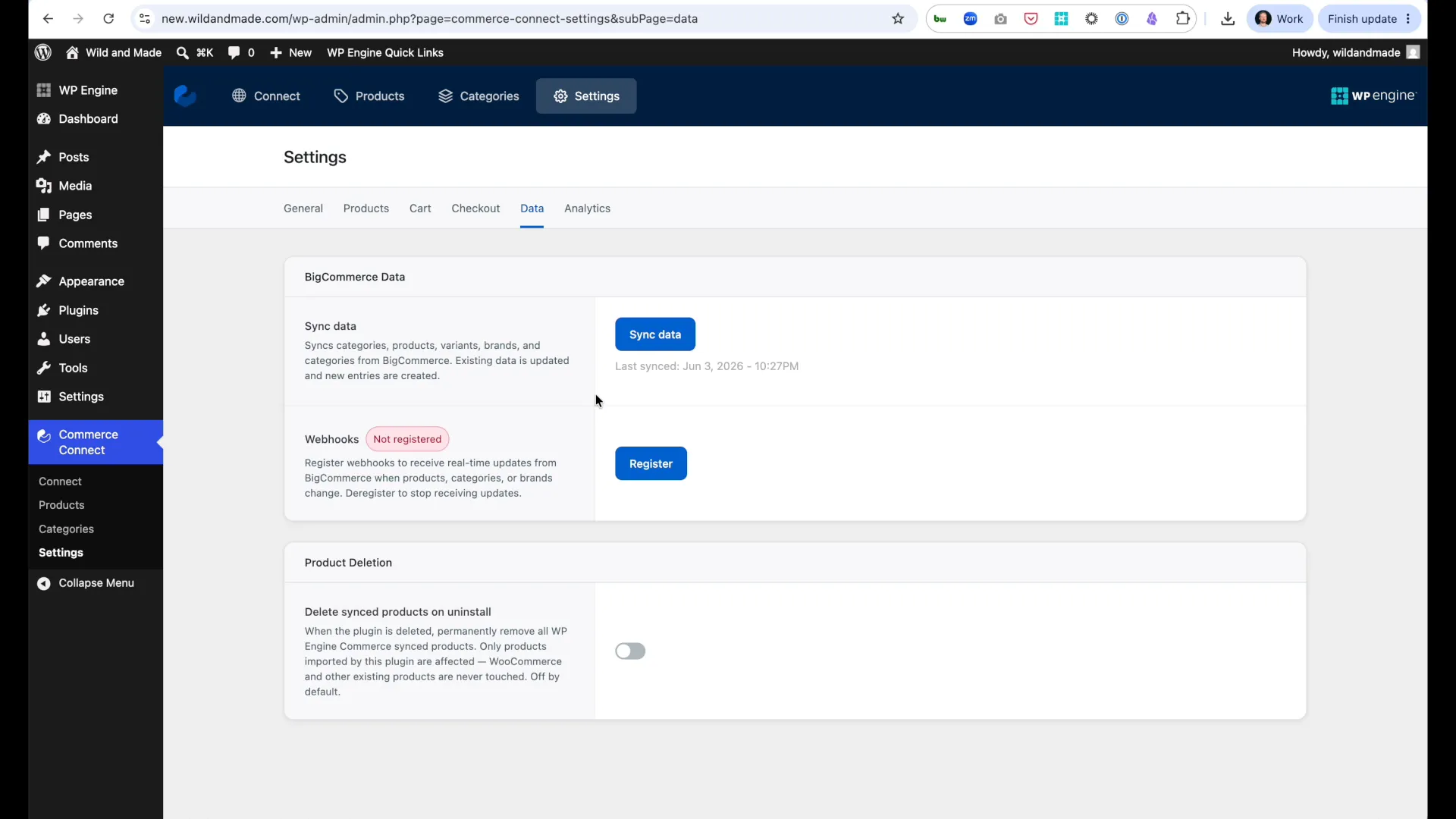
- Installed Commerce Connect plugin
- Connected to BigCommerce
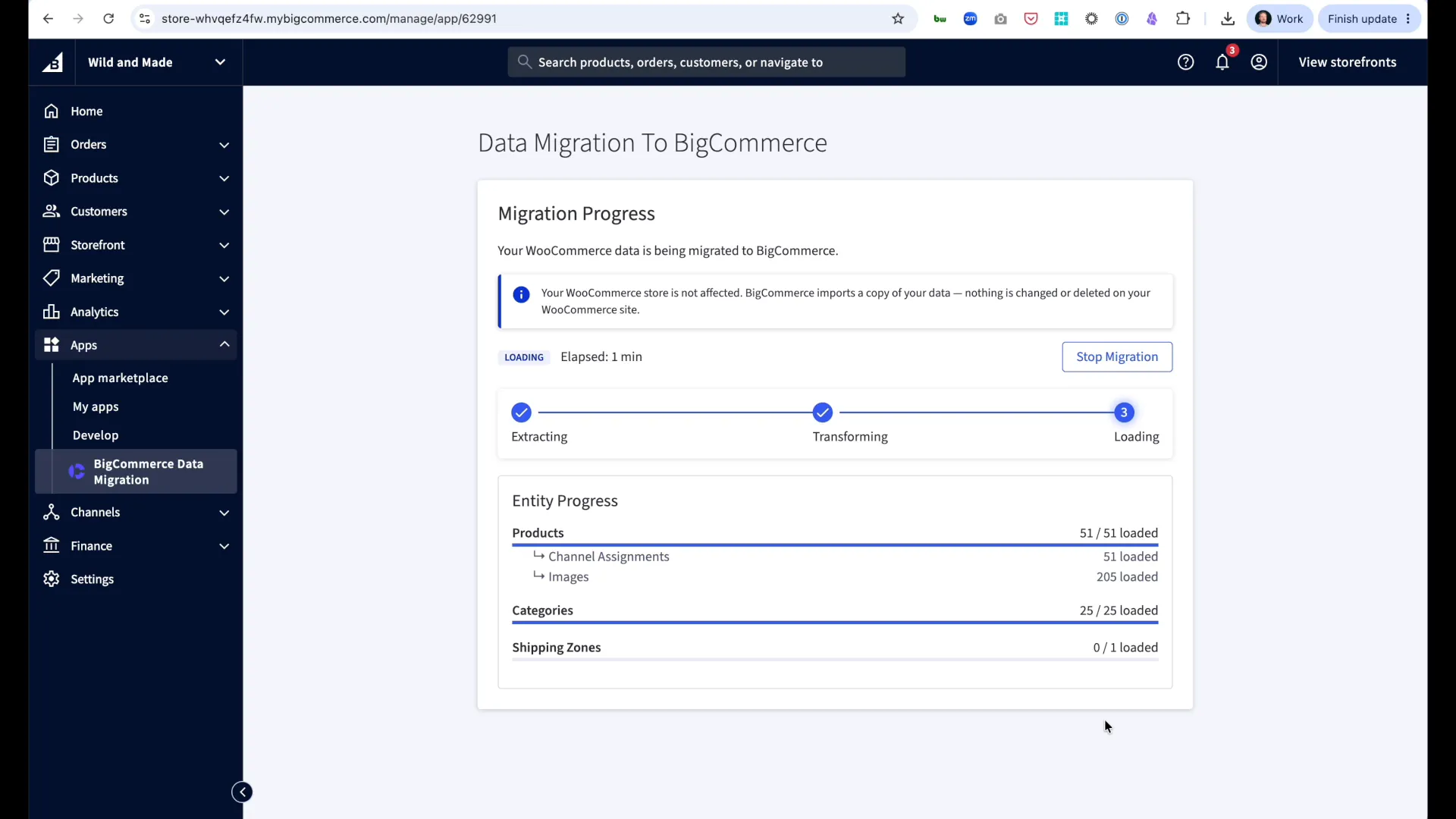
- Migrated your WooCommerce data
If you haven’t completed these steps, start with the Installation Guide first.
What You’ll Accomplish
Section titled “What You’ll Accomplish”In this guide, you’ll:
- Verify your products synced correctly (2 min)
- Create your first store page (5 min)
- Test the complete shopping experience (3 min)
Step 1: Verify Products Synced
Section titled “Step 1: Verify Products Synced”After migration and sync, confirm your products are in Commerce Connect:
- Navigate to Commerce Connect → Products
- Verify: You see all your products listed
- Check: Product images, titles, and prices appear correct
Expected result: All products from WooCommerce now visible in Commerce Connect.
Step 2: Create a Store Page
Section titled “Step 2: Create a Store Page”Now display your products on your WordPress site:
Create the Page
Section titled “Create the Page”- Navigate to Pages → Add New Page
- Page Title: “Store” (or “Shop”, “Products”, etc.)
- Click the + button to add a block
- Search for: “Commerce Connect Products”
- Insert the Commerce Connect Products Block
- Click Publish
Result: Your products now display in a grid layout!
View Your Store
Section titled “View Your Store”- Click View Page or visit
yourdomain.com/store - Verify: Products display with:
- Product images
- Product titles
- Prices
- “Add to Cart” buttons
Step 3: Test the Shopping Experience
Section titled “Step 3: Test the Shopping Experience”Confirm the complete customer journey works:
Add Product to Cart
Section titled “Add Product to Cart”- On your store page, click Add to Cart on any product
- Verify: Cart icon updates (if using cart icon block)
- Cart confirmation appears
Test Checkout
Section titled “Test Checkout”- Click Checkout or View Cart
- Verify redirect: You’re taken to
secure.yourdomain.com(your checkout domain) - Verify: BigCommerce checkout page loads
- Verify: Product appears in cart with correct:
- Image
- Title
- Price
- Quantity
✅ Success: If checkout loads and displays your product correctly, your Commerce Connect installation is working!
What’s Next?
Section titled “What’s Next?”Now that basic functionality is confirmed:
Enhance Your Store Pages
Section titled “Enhance Your Store Pages”Add more blocks to create a rich shopping experience:
- Products Filter - Let customers filter by category, price
- Products Search Box - Add search functionality
- Cart Icon - Display cart status in header
Explore all 37+ available blocks →
Create Product Detail Pages
Section titled “Create Product Detail Pages”Display individual product pages:
- Create a new page or template
- Add single product blocks:
Learn more about product page blocks →
Configure Analytics
Section titled “Configure Analytics”Track your store’s performance:
Customize Your Theme
Section titled “Customize Your Theme”Make your store match your brand:
- Appearance → Editor (Full Site Editor)
- Customize:
- Colors
- Typography
- Layout
- Headers/Footers
Reminder: Commerce Connect requires a Full Site Editor theme.
Troubleshooting
Section titled “Troubleshooting”Products Display But Images Missing
Section titled “Products Display But Images Missing”Cause: Images didn’t sync or BigCommerce image URLs blocked
Solution:
- Check Commerce Connect → Products - do images show there?
- If yes: Clear WordPress cache
- If no: Go to Commerce Connect → Settings → Data and click Sync Products
Add to Cart Button Doesn’t Work
Section titled “Add to Cart Button Doesn’t Work”Cause: JavaScript error or cache issue
Solution:
- Test in incognito/private browsing window
- Clear browser cache
- Check browser console for errors (F12 → Console tab)
- Disable other plugins temporarily to rule out conflicts
Checkout Doesn’t Load
Section titled “Checkout Doesn’t Load”Cause: DNS not configured correctly for checkout domain
Solution:
- Verify DNS: Go to dnschecker.org
- Search for your checkout domain (e.g.,
secure.yourdomain.com) - Type: CNAME
- Verify propagation across locations
If DNS not propagated:
- Check DNS provider settings
- Confirm CNAME record exists
- Wait (propagation varies)
Products Not Syncing from BigCommerce
Section titled “Products Not Syncing from BigCommerce”Cause: Webhooks not registered
Solution:
- Navigate to Commerce Connect → Settings → Webhooks
- Check status
- If inactive, click Register Webhooks
- Confirm: “Webhooks successfully registered”
Understanding the Data Flow
Section titled “Understanding the Data Flow”Commerce Connect keeps WordPress and BigCommerce in sync:
BigCommerce (Source of Truth) ↓ (Webhooks - automatic)Commerce Connect Plugin ↓ (Display)WordPress Blocks ↓ (Customer clicks checkout)BigCommerce Checkout (Hosted)Key concept: Products display in WordPress, checkout happens on BigCommerce.
Why This Architecture?
Section titled “Why This Architecture?”- WordPress strengths: Content, SEO, page building, marketing
- BigCommerce strengths: Commerce, checkout, payments, fraud protection, PCI compliance
Commerce Connect combines both platforms’ strengths.
Performance Tips
Section titled “Performance Tips”First Page Load
Section titled “First Page Load”Products load from BigCommerce on first view, then cache in WordPress.
Expected: First load may be slower, subsequent loads much faster.
Large Catalogs
Section titled “Large Catalogs”If you have 1,000+ products:
- Use pagination (Products block supports this automatically)
- Add filters so customers can narrow results
- Consider separate category pages instead of showing all products
Image Optimization
Section titled “Image Optimization”BigCommerce serves images, but you can optimize further:
- Enable Full Page Caching in WP Engine
- Use NitroPack for additional optimization (if available)
- Enable lazy loading (most modern themes do this automatically)
Need Help?
Section titled “Need Help?”- Installation Guide - Complete setup process
- Configuration - Detailed settings
- Troubleshooting - Common issues and solutions
- Support Center - Contact WP Engine support
Ready to build? Explore all available blocks →