
WooCommerce to BigCommerce Migration Overview
Migrate from WooCommerce® to BigCommerce with Commerce Connect in WordPress®. This guide covers the complete migration path, from pre-flight assessment through go-live.
Why Migrate?
Section titled “Why Migrate?”What You Gain
Section titled “What You Gain”- WordPress® content + editing - Keep WordPress® for content, SEO, blog, landing pages
- BigCommerce commerce - Enterprise-grade product management, checkout, inventory
- Block-based storefront - Build with 37 Commerce Connect blocks in Site Editor
- Better performance - Synced architecture with caching, faster than WooCommerce® at scale
- Reduced plugin count - Fewer dependencies, less maintenance, fewer conflicts
Migration Phases
Section titled “Migration Phases”Phase 1: Install Commerce Connect & Create BigCommerce Store
Section titled “Phase 1: Install Commerce Connect & Create BigCommerce Store”Before migrating data, you need Commerce Connect installed and connected to BigCommerce.
Follow the Installation Guide Phases 1-2 → to:
- Create a copy of your production site
- Install Commerce Connect plugin
- Create your BigCommerce trial account
- Connect BigCommerce to WordPress®
Once connected, return here to continue with Phase 2: Data Migration.
Phase 2: Data Migration to BigCommerce
Section titled “Phase 2: Data Migration to BigCommerce”Current state: Products, orders, and customers exist in WooCommerce®
Goal: Migrate all data to BigCommerce
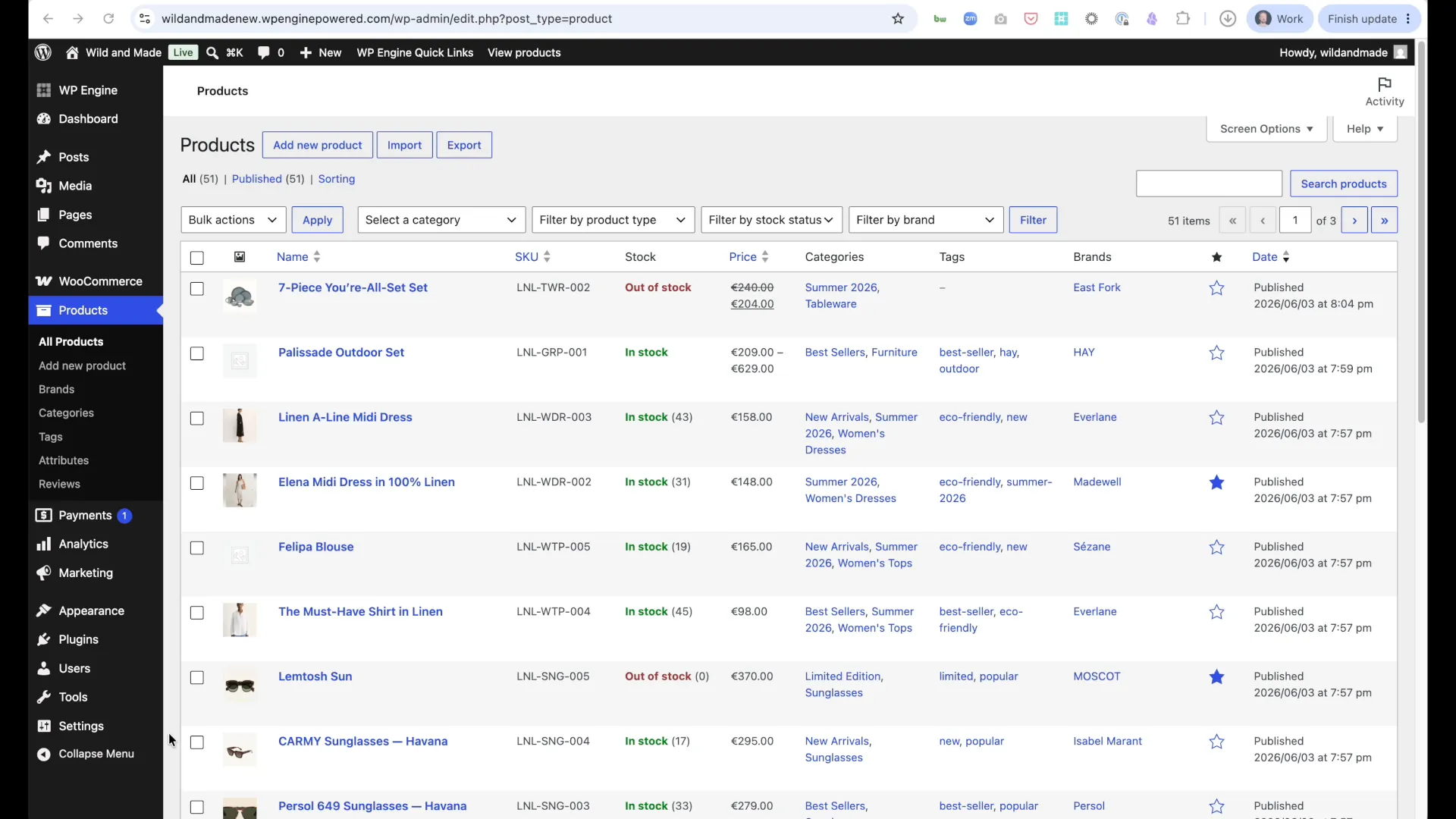
- Run Migration Tool
- Navigate to Apps → BigCommerce Data Migration (in WordPress® admin)
- Agree to terms and conditions
- Select data to migrate:
- ☑ Catalog Data
- ☑ Customer Data
- ☑ Order Data
- ☑ Shipping Configuration
- ☑ Coupons
- Click Continue to Preview
- Click Run Preview Validation (recommended)
- Review validation results
- Click Continue to Review and Start Migration
- Click Start Migration
- Wait for completion (progress shown on screen)
-
Validate Migration Results
Migration complete screen shows:
- Products migrated: X
- Images migrated: X
- Categories migrated: X
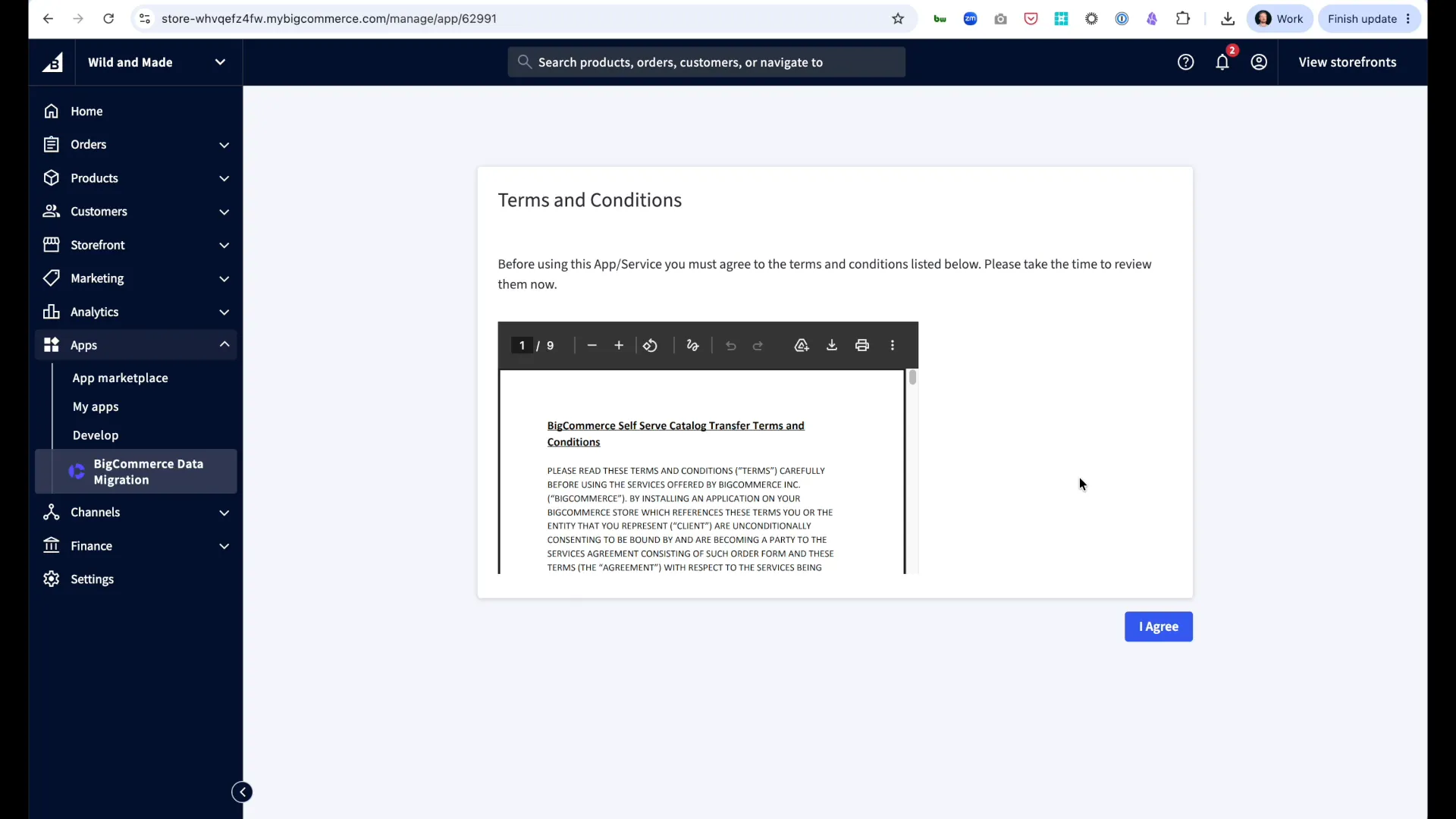
Verify in BigCommerce admin:
- Go to BigCommerce admin → Products → All Products
- Compare counts (products, categories, orders)
- Spot-check product details (images, variants, pricing, categories)
- Verify order data (line items, customer info, status)
- Address Migration Errors (if any)
- Fix data issues in WooCommerce®
- Re-run migration for failed items
- Document manual adjustments needed
Phase 3: Sync Products to WordPress®
Section titled “Phase 3: Sync Products to WordPress®”Note: Plugin installation and BigCommerce connection were completed in Phase 3.
- Initial Product Sync
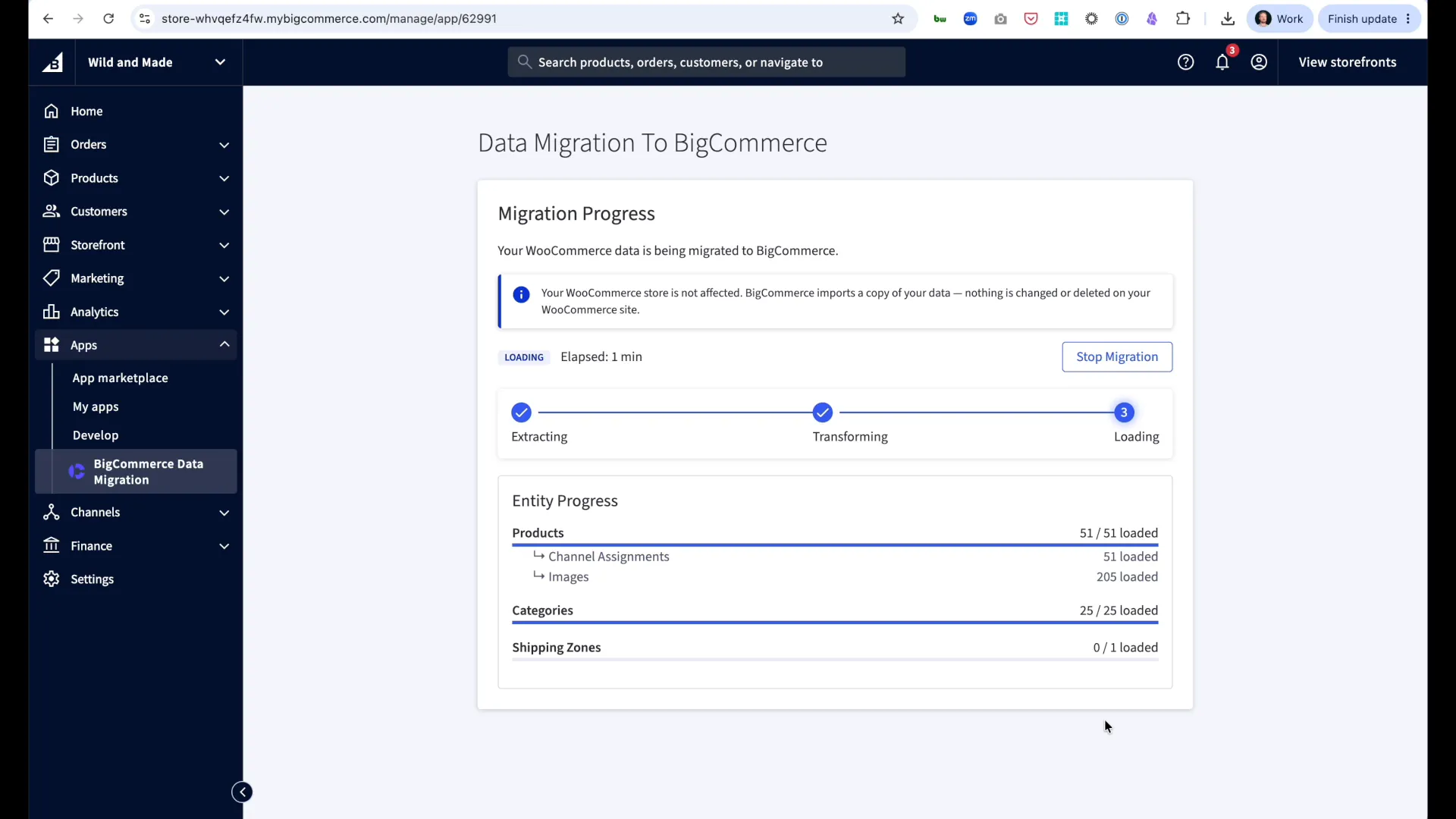
- Navigate to Commerce Connect → Settings → Data
- Click Sync Products
- Wait for sync to complete
- Result: “X products successfully synced”
-
Verify Sync Completed
- Navigate to Commerce Connect → Products
- Verify you see all your products listed
- Check product images, titles, and prices appear correct
- Verify product count matches your BigCommerce catalog
Expected result: All products from BigCommerce now visible in Commerce Connect.
-
Transfer Custom Field & SEO Data (If Applicable)
If you have:
- Advanced Custom Fields (ACF) data on WooCommerce® products
- SEO metadata (Yoast, Rank Math, etc.) on WooCommerce® products
Then: Transfer that data from WooCommerce® to Commerce Connect products.
Location: Commerce Connect → Settings → Data
Note: This feature is coming in an upcoming plugin release. When available, the transfer will happen in this tab.
-
Remove WooCommerce®
⚠️ Only after confirming Commerce Connect products synced correctly!
- Verify products in Commerce Connect → Products
- Navigate to Plugins
- Deactivate WooCommerce®
- Delete WooCommerce® plugin
Why: WooCommerce® is no longer needed - Commerce Connect handles all product functionality.
Phase 4: Theme Transition
Section titled “Phase 4: Theme Transition”Replace WooCommerce® blocks with Commerce Connect blocks in your WordPress® theme.
Block Mapping Reference
Section titled “Block Mapping Reference”| WooCommerce® Block | Commerce Connect Block | Notes |
|---|---|---|
woocommerce/product-grid | commerce-connect/products-grid | Set columns to match |
woocommerce/product-search | commerce-connect/products-search-box | Position in header |
woocommerce/filter-by-price | commerce-connect/products-filter-control | Price range filter |
woocommerce/filter-by-attribute | commerce-connect/products-filter-control | Per attribute |
woocommerce/active-filters | commerce-connect/products-filter-selections | Active chips |
woocommerce/product-results-count | commerce-connect/products-count | Result count |
woocommerce/product-images | commerce-connect/product-images | Gallery |
woocommerce/product-title | commerce-connect/product-title | H1 heading |
woocommerce/product-price | commerce-connect/product-pricing | Price display |
woocommerce/product-rating | commerce-connect/product-rating | Star rating |
woocommerce/add-to-cart | commerce-connect/product-buy-button | Add to cart |
woocommerce/product-meta | commerce-connect/product-description | Product details |
woocommerce/reviews | commerce-connect/product-reviews | Reviews section |
woocommerce/related-products | commerce-connect/related-products | Related items |
woocommerce/cart | Native cart via BigCommerce | Embedded iframe or redirect |
woocommerce/checkout | Native checkout via BigCommerce | Embedded or redirect |
woocommerce/account-dashboard | commerce-connect/account | Dashboard container |
woocommerce/account-orders | commerce-connect/orders | Order history (child block) |
woocommerce/account-addresses | commerce-connect/account-addresses | Address book (child block) |
woocommerce/account-details | commerce-connect/account-details | Profile info (child block) |
Page-by-Page Transition Checklist
Section titled “Page-by-Page Transition Checklist”- Shop page updated (products grid + filters + search)
- Single product template updated (gallery, pricing, buy button, reviews)
- Category template updated (category title, description, filtered products)
- Account pages updated (account dashboard, orders, addresses, profile)
- Header updated (cart icon, search, login link)
- Footer updated (category links, site navigation)
- Navigation menus updated (shop, account, category links)
- Search results page updated (search label, filtered products)
See for detailed instructions.
Phase 5: Testing
Section titled “Phase 5: Testing”Functional Tests
Section titled “Functional Tests”Product Browsing:
- Shop page loads with products displayed
- Product images load correctly
- Prices display accurately
- Filters work (category, price, attributes)
- Search returns relevant results
- Pagination works correctly
Product Details:
- Product pages load
- All product info displays (images, price, description, specs)
- Variant selection works (if applicable)
- Reviews display correctly
- Related products show
- Add to cart functions
Cart & Checkout:
- Cart updates correctly when items added/removed
- Quantities can be changed
- Items can be removed
- Checkout loads (BigCommerce checkout)
- Payment processes successfully
- Order confirmation received
- Order appears in BigCommerce admin
- Order confirmation email sent
Customer Account:
- Registration works
- Login works
- Order history displays correctly
- Address book works
- Profile updates save
Performance Tests
Section titled “Performance Tests”- TTFB < 500ms (Time to First Byte)
- FCP < 1.8s (First Contentful Paint)
- LCP < 2.5s (Largest Contentful Paint)
- No JavaScript errors in browser console
- No PHP errors in WordPress® debug log
Cross-Browser Tests
Section titled “Cross-Browser Tests”- Chrome (desktop + mobile)
- Safari (desktop + mobile)
- Firefox (desktop)
- Edge (desktop)
Phase 6: Go-Live
Section titled “Phase 6: Go-Live”Pre-Launch Checklist
Section titled “Pre-Launch Checklist”- All tests passed (functional, performance, cross-browser)
- Stakeholder approval received
- Full site backup created (database + wp-content)
- Rollback plan documented
- Support team briefed
- Monitoring alerts configured
Go-Live Steps
Section titled “Go-Live Steps”-
Enable Maintenance Mode
- Navigate to Settings → Commerce Connect → Advanced tab
- Toggle Maintenance Mode to ON
- Customize maintenance message (optional): “We’re upgrading our store. Back in 30 minutes!”
- Click Save Changes
-
Final Product Sync
- Navigate to Settings → Commerce Connect → Products tab
- Click Sync Now button
- Wait for sync completion
- Verify sync status shows ”✓ Complete”
-
Switch BigCommerce to Production
- In BigCommerce admin:
- Payment gateway: Switch from Test → Live mode
- Email notifications: Enable customer order confirmations
- Webhook endpoints: Verify production URLs are configured
- In BigCommerce admin:
-
Register Webhooks
Purpose: Sync BigCommerce changes automatically to WordPress®
- Navigate to Commerce Connect → Settings → Webhooks
- Click Register Webhooks
- Wait for confirmation: “Webhooks successfully registered”
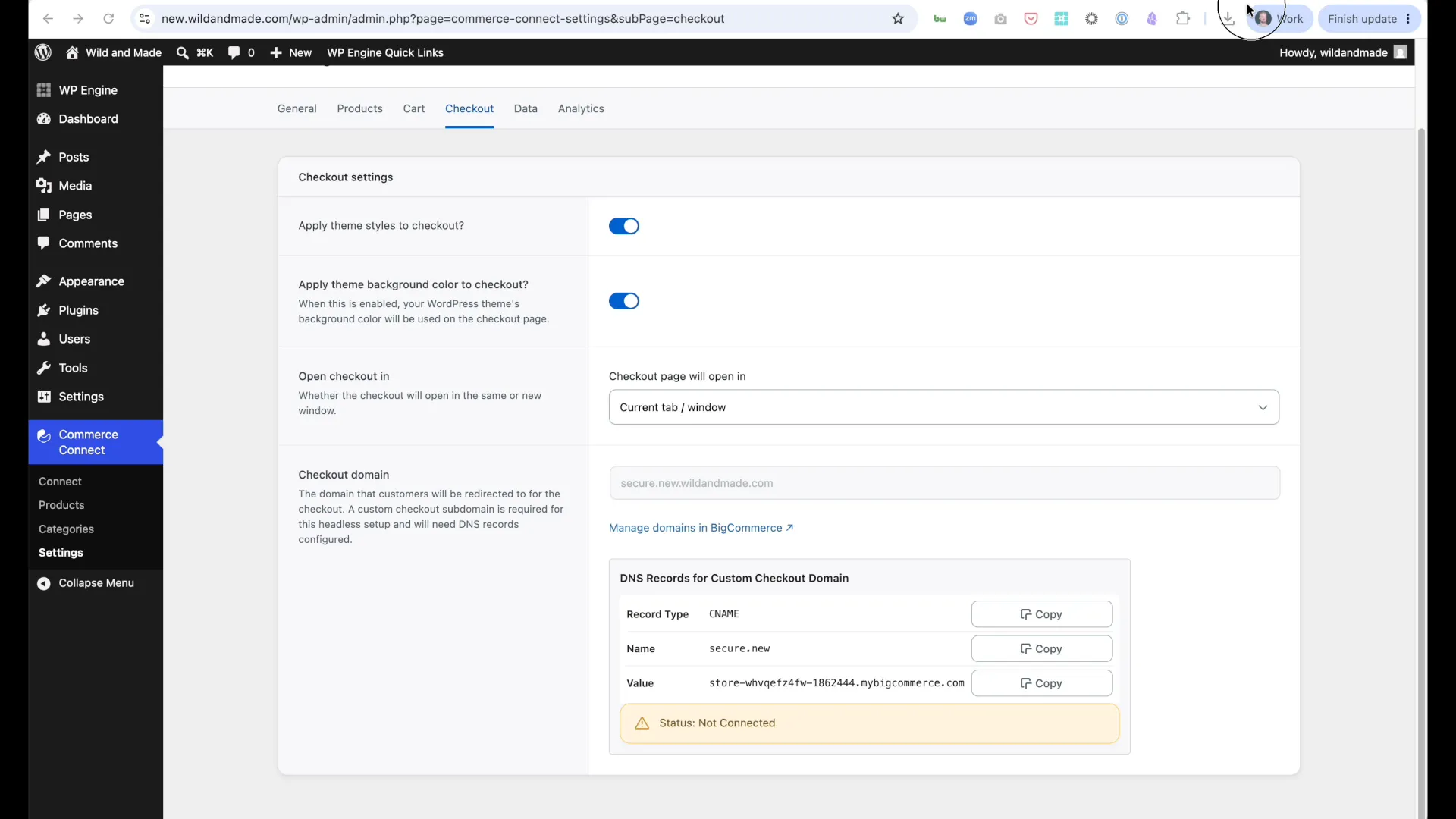
Result: Product updates, inventory changes, and price changes in BigCommerce now automatically sync to WordPress®.
-
Disable Maintenance Mode
- Navigate to Settings → Commerce Connect → Advanced tab
- Toggle Maintenance Mode to OFF
- Click Save Changes
- Site is now live!
-
Verify Production
- Complete a test transaction end-to-end
- Verify order appears in BigCommerce admin
- Check customer receives order confirmation email
- Monitor Settings → Commerce Connect → Logs tab for 1 hour to catch any errors
Post-Launch Monitoring
Section titled “Post-Launch Monitoring”- First 24 hours: Hourly log review
- First week: Daily metrics review (conversion rate, cart abandonment, page speed)
- First month: Weekly performance check (sync reliability, webhook health, customer feedback)
Rollback Plan
Section titled “Rollback Plan”If critical issues arise post-launch:
- Activate Maintenance Mode
- Restore WooCommerce® Backup (database + wp-content)
- Switch DNS back to old site (if DNS changed)
- Notify customers via email/social media
- Document issues for resolution
- Schedule re-launch after fixes validated
Post-Migration Optimization
Section titled “Post-Migration Optimization”Week 1 Tasks
Section titled “Week 1 Tasks”- Monitor sync performance (check logs for errors, slow products)
- Review webhook reliability (Settings → Commerce Connect → Webhooks)
- Check for 404 errors from old WooCommerce® product URLs
- Set up 301 redirects for changed URLs (Yoast SEO redirect feature)
- Verify analytics tracking (GA4, GTM, custom providers)
Week 2-4 Tasks
Section titled “Week 2-4 Tasks”- Enable product reviews (if not done during setup)
- Configure multi-currency (if needed for international sales)
- Set up abandoned cart emails in BigCommerce
- Optimize page speed (enable object cache, review EFPC hit rate)
- A/B test checkout flow (embedded vs. redirect)
Ongoing Maintenance
Section titled “Ongoing Maintenance”- Monthly: Product sync audit (spot-check synced data vs. BigCommerce)
- Quarterly: Webhook health check (re-register if delivery failing)
- Regularly: Plugin updates (test on staging first)
- Continuously: Performance monitoring (Core Web Vitals, uptime)
- Ongoing: Customer feedback collection (surveys, support tickets)
Common Issues & Solutions
Section titled “Common Issues & Solutions”| Issue | Cause | Solution |
|---|---|---|
| Products missing after migration | Not assigned to WordPress® channel in BigCommerce | Assign products to channel in BigCommerce admin |
| Checkout redirects to BigCommerce default | Previous channel still claims WordPress® hostname (422 error) | Delete orphaned channel in BigCommerce admin, reconnect |
| Slow initial sync | Large catalog hitting memory/time limits | Increase PHP memory_limit and max_execution_time in wp-config.php |
| Webhooks not firing | Delivery failures, destination blocklisted | Navigate to Settings → Commerce Connect → Webhooks tab and click Re-register Webhooks button |
| 404 errors on old product URLs | WooCommerce® URLs different from BigCommerce slugs | Set up 301 redirects using Yoast SEO or Redirection plugin |
| Images not loading | BigCommerce image URLs blocked, CDN issues | Verify image URLs in product meta, check network tab for 404s |
Q: Can I keep WooCommerce® installed after migration?
A: No. Deactivate WooCommerce® to avoid post type conflicts with Commerce Connect. You can keep WooCommerce® plugin files for reference but it must be deactivated.
Q: Will my old product URLs break?
A: Potentially. Set up 301 redirects from old WooCommerce® product URLs to new BigCommerce-synced product URLs to preserve SEO.
Q: Do I need to manage products in both systems?
A: No. Products are managed entirely in BigCommerce. WordPress® pulls synced data via webhooks. One source of truth.
Q: What happens to my order history?
A: Orders migrate to BigCommerce during the data migration phase. Order history is visible in Commerce Connect account blocks.
Q: Can customers use their existing WordPress® login?
A: No. Commerce Connect uses BigCommerce customer accounts (SSO between WordPress® frontend and BigCommerce checkout). Customers will need to create new accounts or migrate credentials during BigCommerce data migration.
Q: How long does migration take?
A: Depends on catalog size and data quality. Typical timeline:
- Small store (< 500 products): 1-2 days
- Medium store (500-5,000 products): 3-5 days
- Large store (5,000+ products): 1-2 weeks
Q: Do I need technical knowledge?
A: Basic setup (connection, sync, blocks): No. Theme customization and migration: Some WordPress® knowledge helpful. Complex customizations: Developer recommended.
Q: Can I test before going live?
A: Yes. Use BigCommerce sandbox + WordPress® staging site for full migration dry run before production cutover.
Next Steps
Section titled “Next Steps”-
- Detailed field-by-field mapping
-
- Replace WooCommerce® blocks step-by-step
-
- Optimization and ongoing maintenance
Related Documentation
Section titled “Related Documentation”- Product Sync - How syncing works after migration
- Blocks Overview - Complete block library reference
- Troubleshooting - Common migration issues and fixes