
Product Meta Migration
Product Meta Migration allows you to preserve custom product metadata when migrating from WooCommerce® to BigCommerce. This feature copies Advanced Custom Fields (ACF) values from your WooCommerce® products to matching BigCommerce-synced products using SKU as the matching key.
What Gets Migrated
Section titled “What Gets Migrated”By default, Product Meta Migration copies Google Product Feed (GPF) fields from WooCommerce® to BigCommerce products:
- GTIN (Global Trade Item Number)
- Brand
- MPN (Manufacturer Part Number)
- Google Product Category
- Product Type
- Availability (In Stock, Backorder, Out of Stock)
- Delivery Label
- Custom Labels
- Product Exclusions
Custom ACF fields attached to WooCommerce® products can also be migrated using developer hooks.
When to Use Product Meta Migration
Section titled “When to Use Product Meta Migration”Use this feature if you:
- Have WooCommerce® products with custom ACF fields
- Use Google Shopping integration (WooCommerce® GPF plugin)
- Added custom product metadata that needs to carry over to BigCommerce
- Want to preserve product-specific settings during migration
Skip this feature if:
- You don’t have custom ACF fields on WooCommerce® products
- All your product data is already in BigCommerce
- You’re setting up a fresh store without WooCommerce®
Migration Workflow
Section titled “Migration Workflow”Step 1: Sync BigCommerce Products
Section titled “Step 1: Sync BigCommerce Products”Before running meta migration, ensure you’ve synced products from BigCommerce:
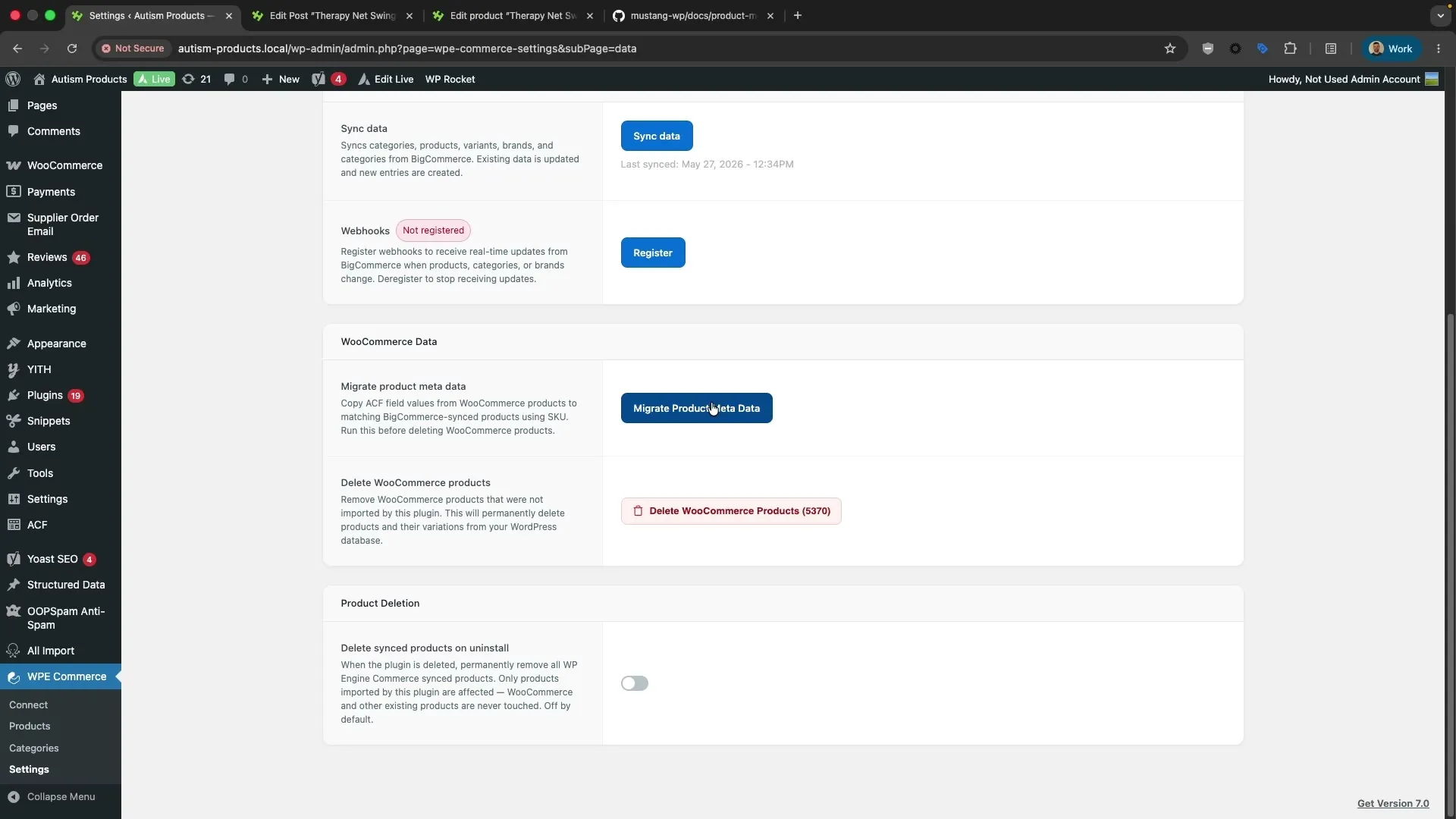
- Go to Commerce Connect > Settings > Data
- Click Sync data to pull products from BigCommerce
- Wait for sync to complete (timestamp shows last successful sync)
Step 2: Run Product Meta Migration
Section titled “Step 2: Run Product Meta Migration”- On the same Data tab, scroll to WooCommerce® Data section
- Under Migrate product meta data, click Migrate Product Meta Data
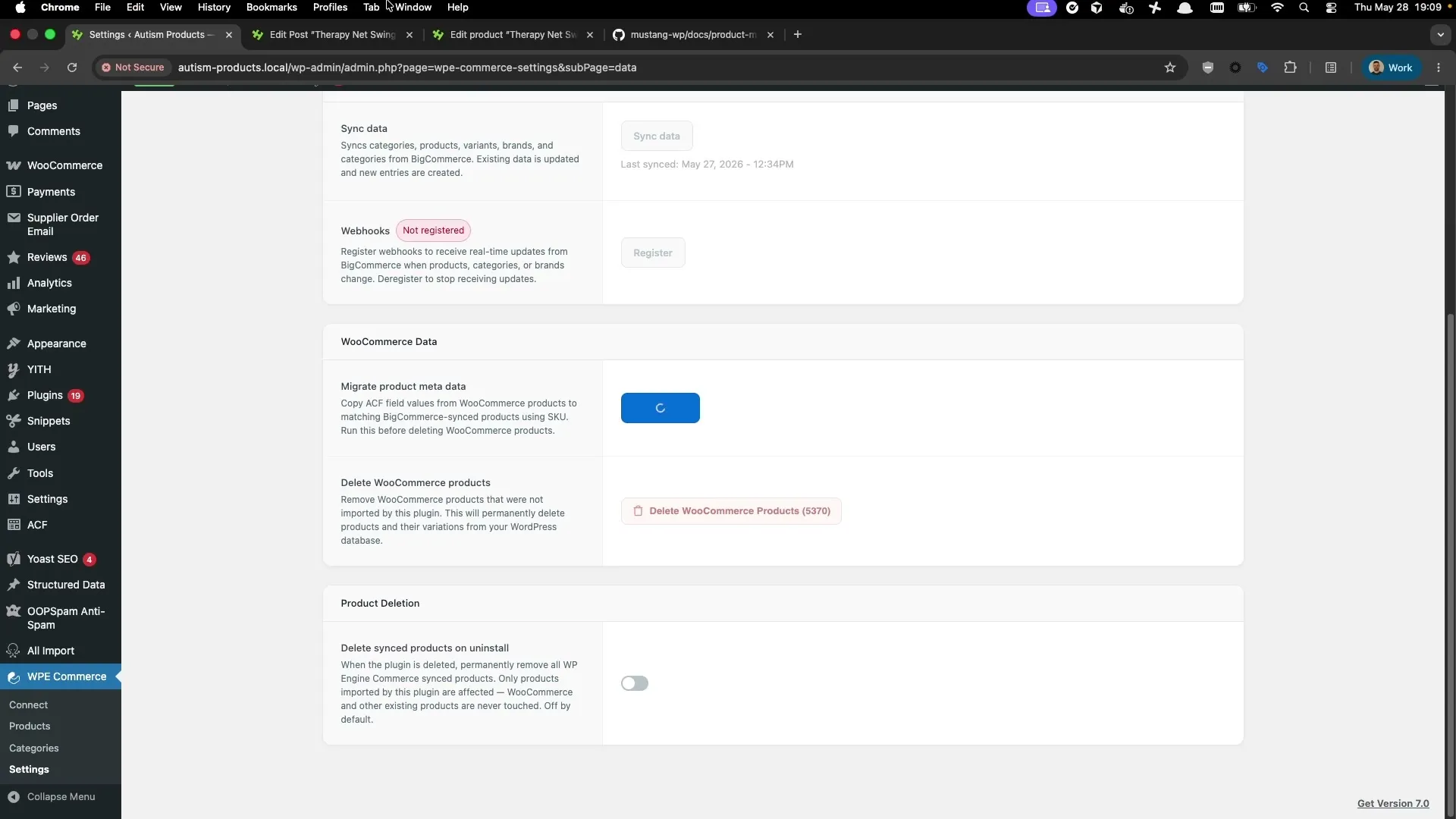
- A progress spinner displays while migration runs (may take several minutes for large catalogs)
Step 3: Review Migration Results
Section titled “Step 3: Review Migration Results”When migration completes, results display showing:
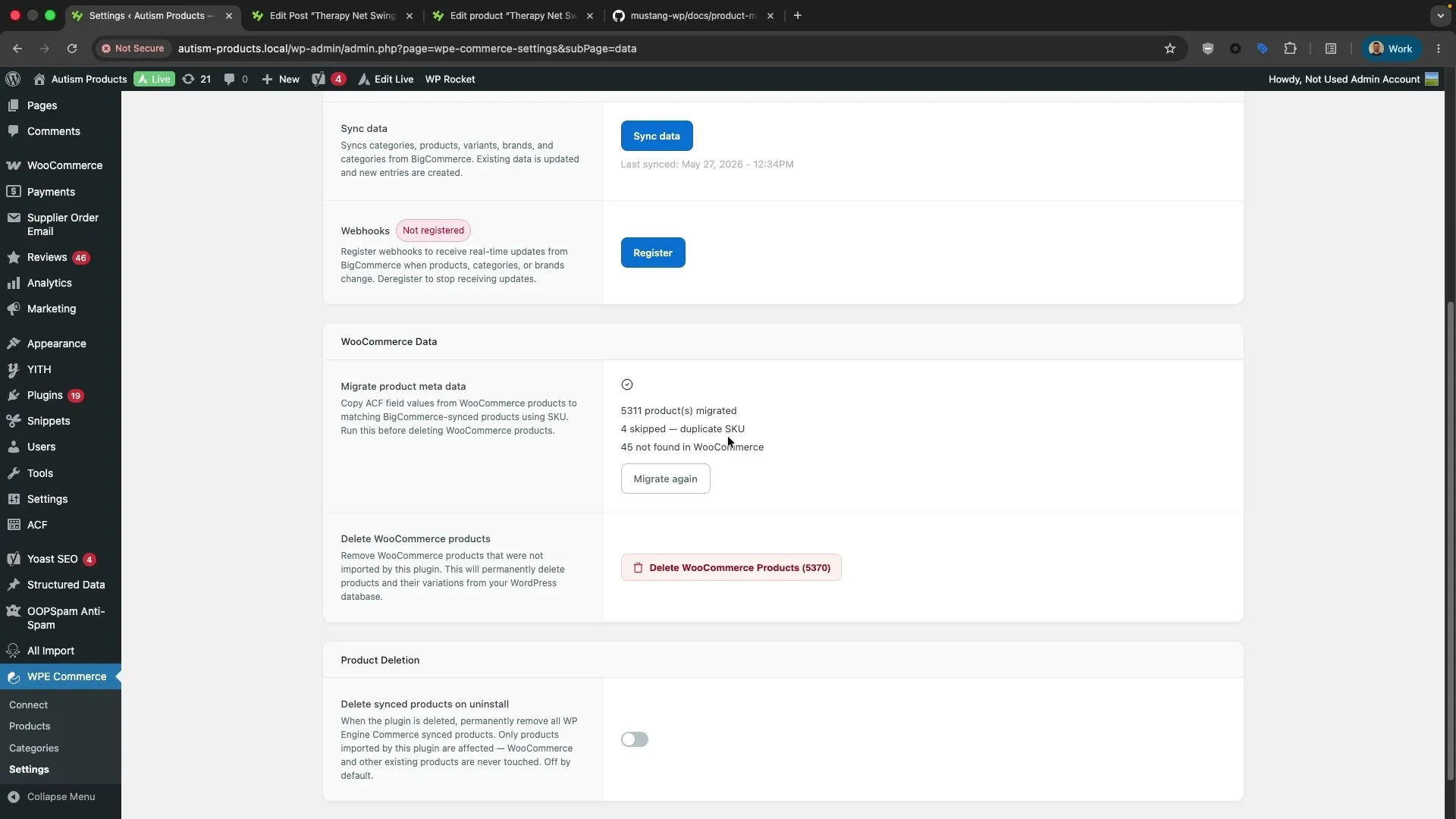
- X product(s) migrated - Products successfully matched by SKU and updated
- X skipped — duplicate SKU - Products with duplicate SKUs that need manual review
- X not found in WooCommerce® - BigCommerce products with no matching WooCommerce® product
Step 4: Verify Migrated Data
Section titled “Step 4: Verify Migrated Data”- Go to Products in WordPress® admin
- Edit a BigCommerce-synced product
- Scroll to Google Shopping & Product Data section
- Verify migrated field values appear correctly
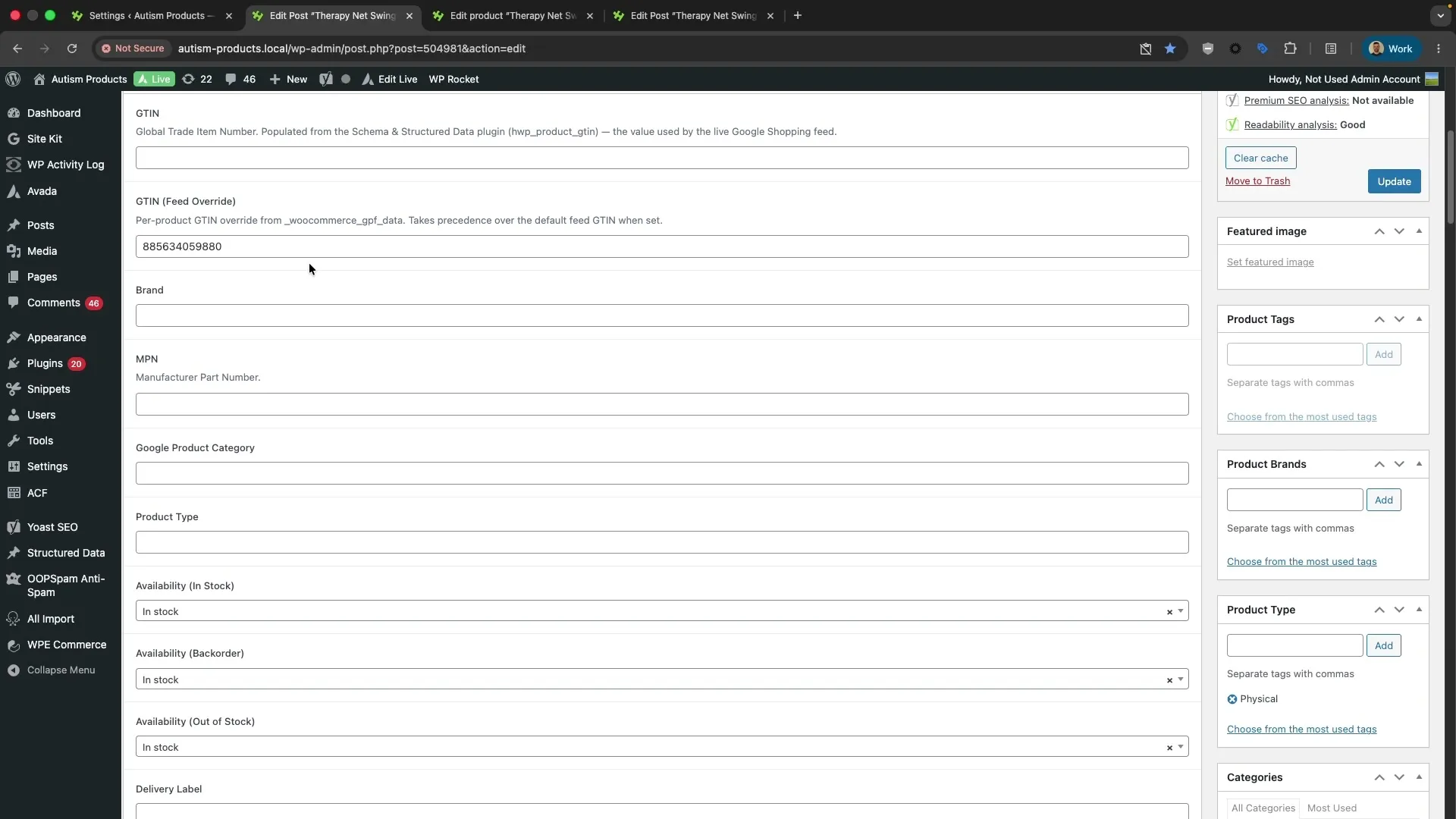
In this example, the GTIN (Feed Override) field shows 885634059880 — the value migrated from WooCommerce® GPF data.
Understanding Migration Results
Section titled “Understanding Migration Results”Migrated Products
Section titled “Migrated Products”Products are successfully migrated when:
- WooCommerce® product and BigCommerce product share the same SKU
- WooCommerce® product has ACF field values to copy
- Migration writes values to matching ACF fields on BigCommerce product
Example: 5,311 products migrated successfully.
Skipped Products (Duplicate SKU)
Section titled “Skipped Products (Duplicate SKU)”Products are skipped when:
- Multiple WooCommerce® products share the same SKU
- Migration cannot determine which WooCommerce® product to use as source
How to resolve:
- Review WooCommerce® products to identify duplicate SKUs
- Update SKUs to be unique
- Run migration again
Example: 4 skipped — duplicate SKU
Not Found in WooCommerce®
Section titled “Not Found in WooCommerce®”BigCommerce products are marked “not found” when:
- BigCommerce product has a SKU with no matching WooCommerce® product
- BigCommerce product was created directly in BigCommerce
- BigCommerce product SKU doesn’t match any WooCommerce® SKU
This is normal if:
- You added new products directly in BigCommerce
- You intentionally have BigCommerce-only products
- SKUs differ between WooCommerce® and BigCommerce
Example: 45 not found in WooCommerce®
Re-Running Migration
Section titled “Re-Running Migration”To run migration again after initial completion:
- Click Migrate again button (appears after first migration completes)
- Migration re-runs, processing all products again
- Existing migrated values are overwritten with current WooCommerce® values
When to re-run migration:
- After updating WooCommerce® product metadata
- After fixing duplicate SKU issues
- After adding new custom fields to WooCommerce® products
Troubleshooting
Section titled “Troubleshooting”No Migration Results Display
Section titled “No Migration Results Display”Cause: Migration may have timed out or encountered an error.
Solution:
- Check for PHP errors in WordPress® debug log
- Verify WooCommerce® and BigCommerce products both exist
- Confirm products have matching SKUs
- Try again with a smaller product set (filter in BigCommerce)
Migrated Fields Don’t Appear in Product Editor
Section titled “Migrated Fields Don’t Appear in Product Editor”Cause: ACF fields may not be registered or visible.
Solution:
- Verify ACF plugin is active
- Check that GPF field group is assigned to “Product” post type
- Re-save ACF field group to refresh field registration
All Products Show “Not Found in WooCommerce®”
Section titled “All Products Show “Not Found in WooCommerce®””Cause: SKU mismatch between WooCommerce® and BigCommerce.
Solution:
- Verify WooCommerce® products have SKUs set
- Confirm BigCommerce products have matching SKUs
- Check for case sensitivity differences (SKUs are case-sensitive)
- Export SKUs from both systems and compare in spreadsheet
Duplicate SKU Errors
Section titled “Duplicate SKU Errors”Cause: Multiple WooCommerce® products share the same SKU.
Solution:
- Go to Products in WordPress® admin
- Search for products by the duplicate SKU
- Update one or more products to use unique SKUs
- Run migration again
Developer Extensibility
Section titled “Developer Extensibility”Product Meta Migration fires a hook after each successful product migration, allowing developers to migrate custom meta fields beyond the default GPF fields.
See Product Meta Migration Hooks for code examples and extensibility patterns.
Migration Checklist
Section titled “Migration Checklist”Use this checklist to ensure successful product meta migration:
- Sync products from BigCommerce (Settings > Data > Sync data)
- Verify WooCommerce® products have SKUs set
- Verify BigCommerce products have matching SKUs
- Run Product Meta Migration (Settings > Data > Migrate Product Meta Data)
- Review migration results (migrated/skipped/not found counts)
- Resolve duplicate SKU errors if any
- Verify migrated data in product editor
- Re-run migration if needed (after fixing SKU issues)
- DO NOT delete WooCommerce® products until migration is complete
Related Documentation
Section titled “Related Documentation”- Pre-Migration Assessment - Prepare for WooCommerce® migration
- Product Sync - Understand how BigCommerce products sync
- Developer Hooks: Product Meta Migration - Extend migration functionality
- Custom Fields Compatibility - Learn about custom fields plugin support